Stillmaking Get notified

A workshop shelf for your projects

Pick up where you left off.

The half-painted model. The chapter you want to get back to. Stillmaking keeps your notes, photos and next steps together, so you can open a project, see exactly where you left it, and start with one small step that fits the time you have.

Coming soon to the App Store

  • No account
  • No subscription
  • Stays on your iPhone
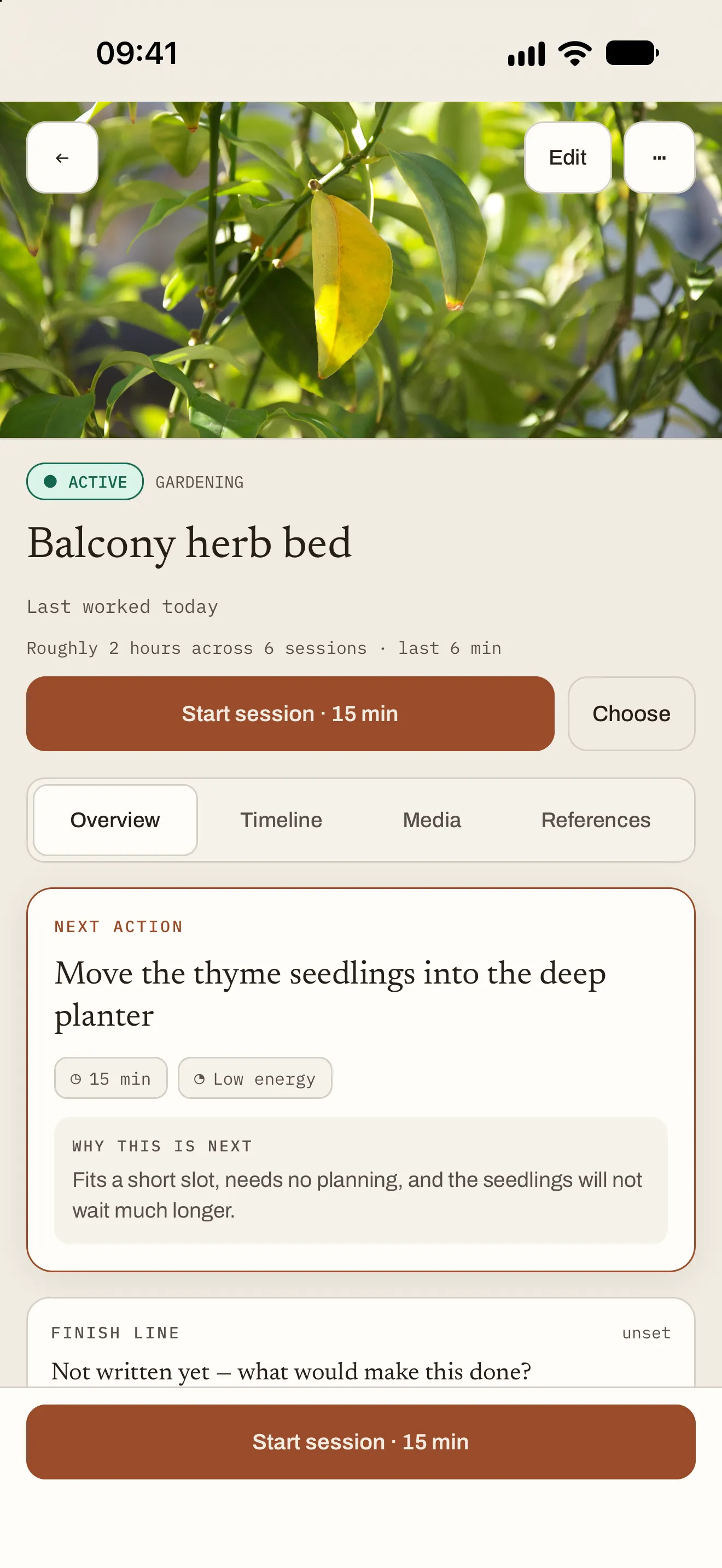
A Stillmaking project, Balcony herb bed: active, last worked today, with its next action “Move the thyme seedlings into the deep planter” and why it’s next
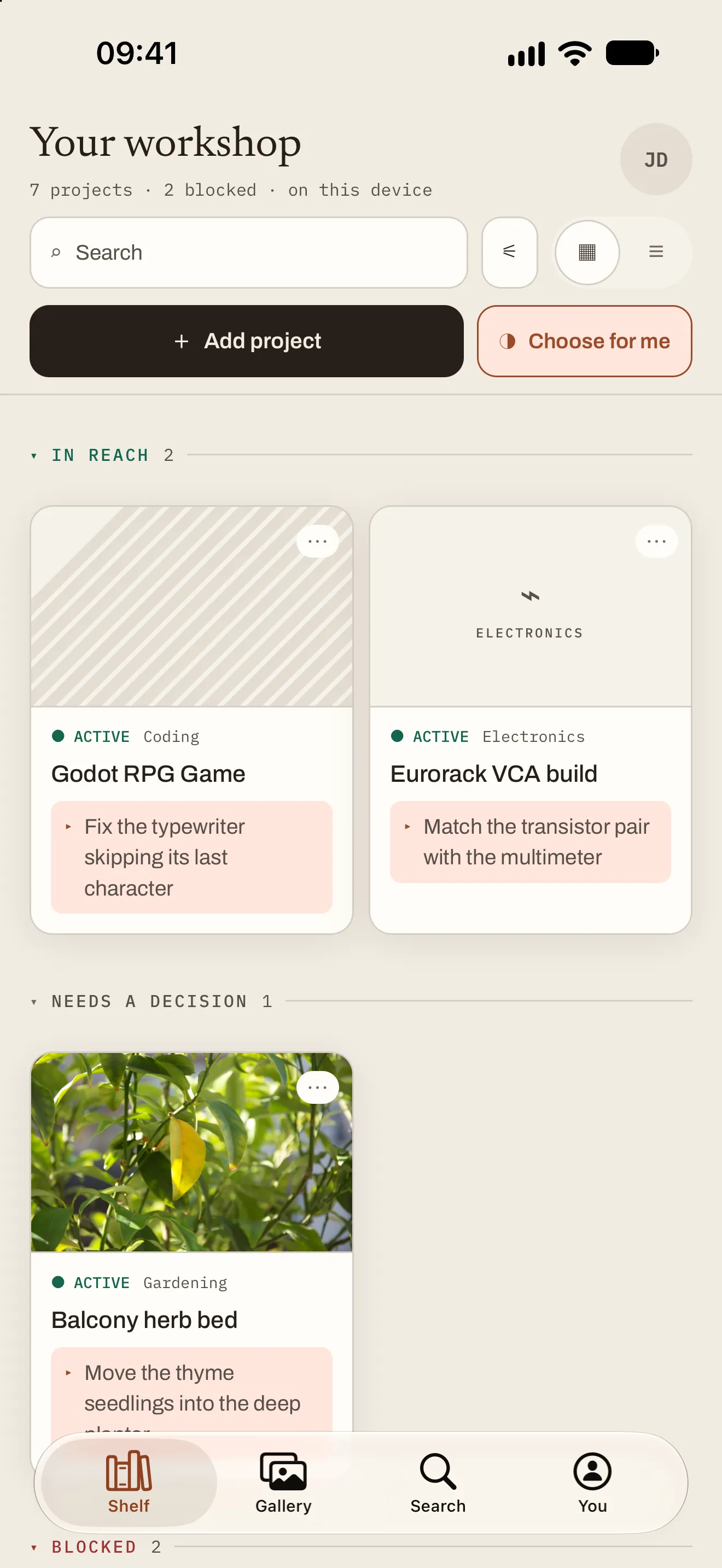
The Stillmaking shelf, “Your workshop”: projects in reach, one needing a decision, each card with its state and next step

How it works

Less remembering. More making.

Projects stall in the gap between sessions. Stillmaking is built for that gap: it remembers where you stopped, and it hands you a way back in.

01

Remember exactly where you left it.

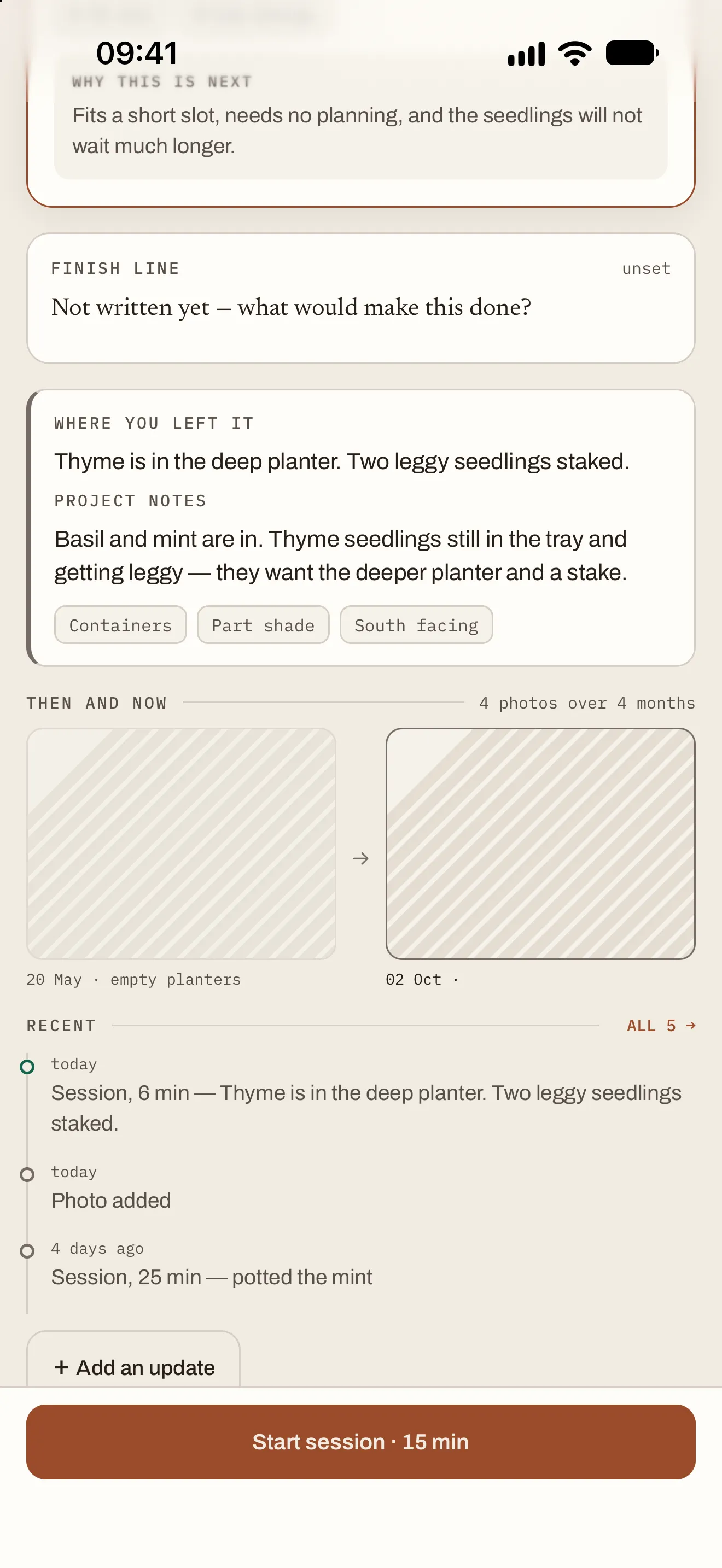
When you end a session, leave a line about where you got to. Next time you open the project, it’s the first thing you see, under Where you left it, kept apart from your longer notes, measurements and links.

  • A timeline of every session, update and photo
  • “Then and now” photos to see how far it’s come
  • Search across titles, notes, sessions, tools and references
Stillmaking project detail scrolled to “Where you left it: Thyme is in the deep planter. Two leggy seedlings staked.”, project notes, Then and now photos and the recent log

02

Get one next step that fits.

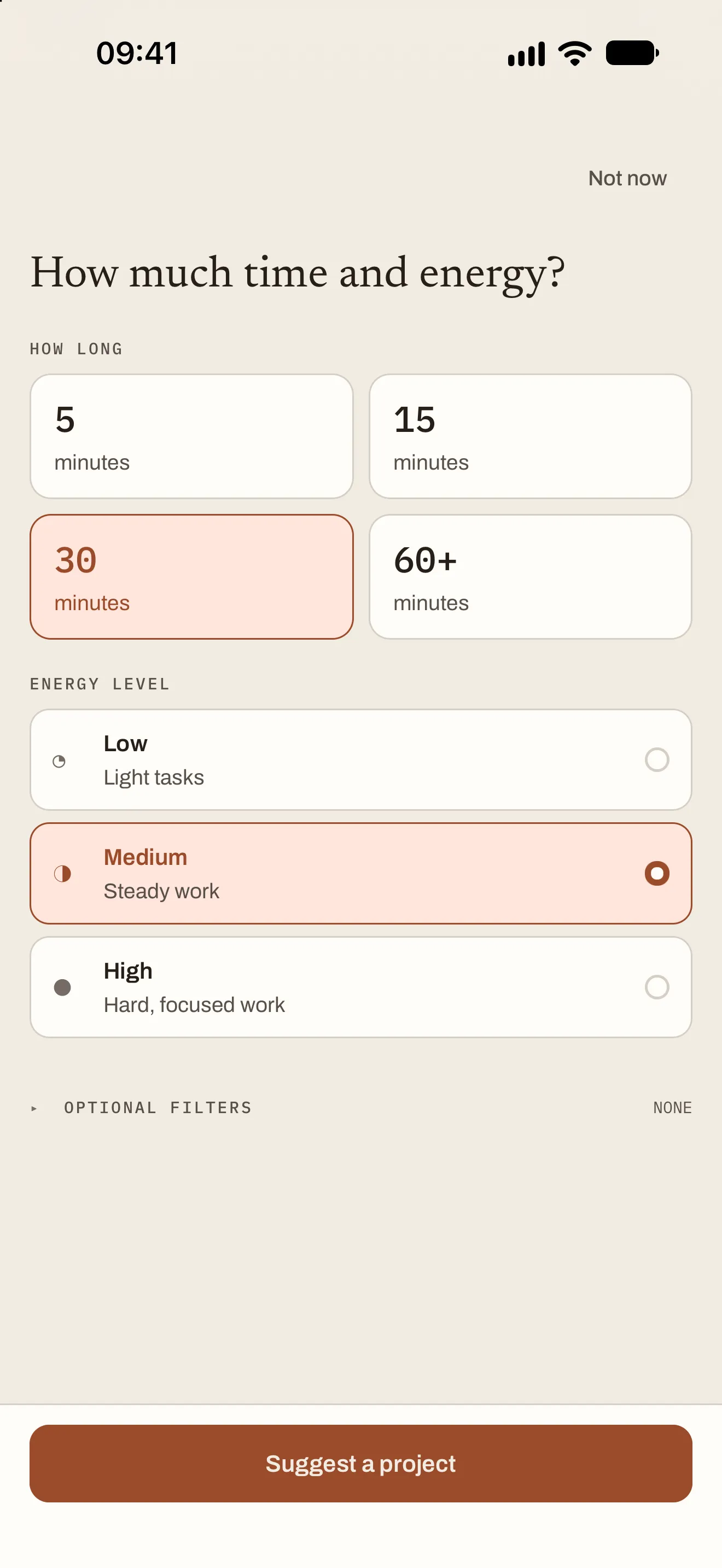
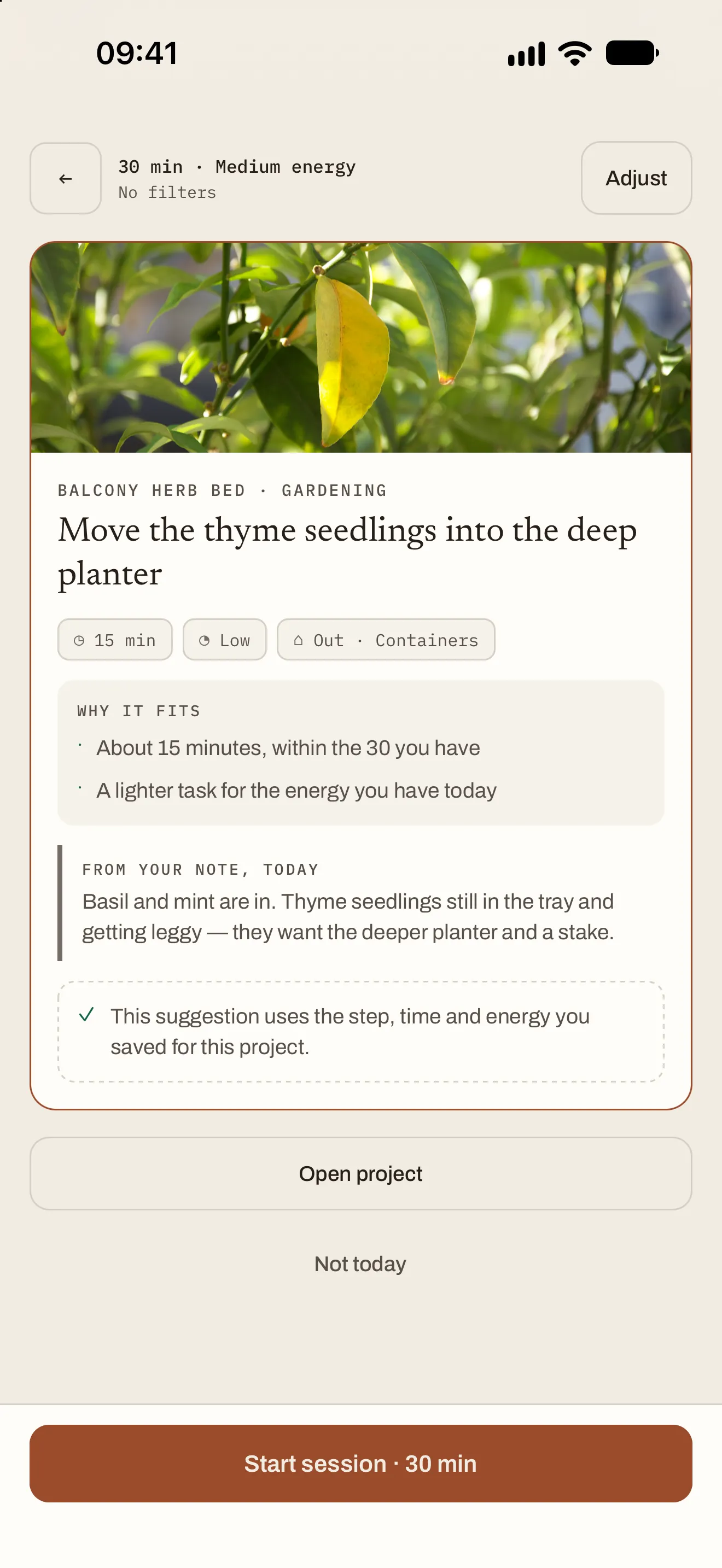
Tell Stillmaking how much time and energy you have, from five minutes to an hour or more. It suggests one next action from your own projects and tells you why it fits. Not today? Ask for another.

  • Blocked and paused projects are left out
  • Optional filters: no shopping or setup, where you are, a different kind of project
  • Fixed rules on your device. The same answers give the same suggestion.
Stillmaking’s “How much time and energy?” screen with 30 minutes and medium energy chosen
A suggestion: move the thyme seedlings into the deep planter. Why it fits: about 15 minutes, within the 30 you have, and a lighter task for the energy you have today

03

Work in sessions, with or without a clock.

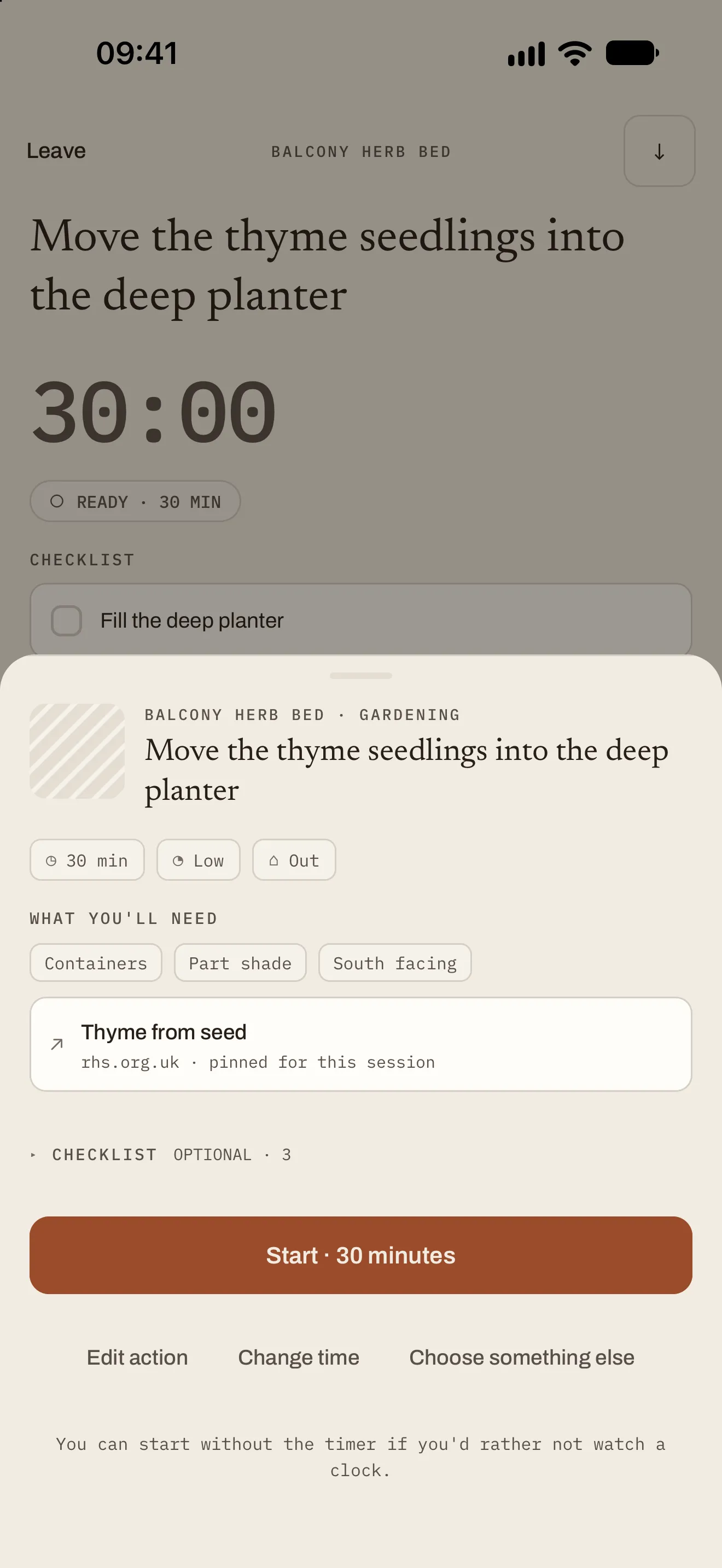
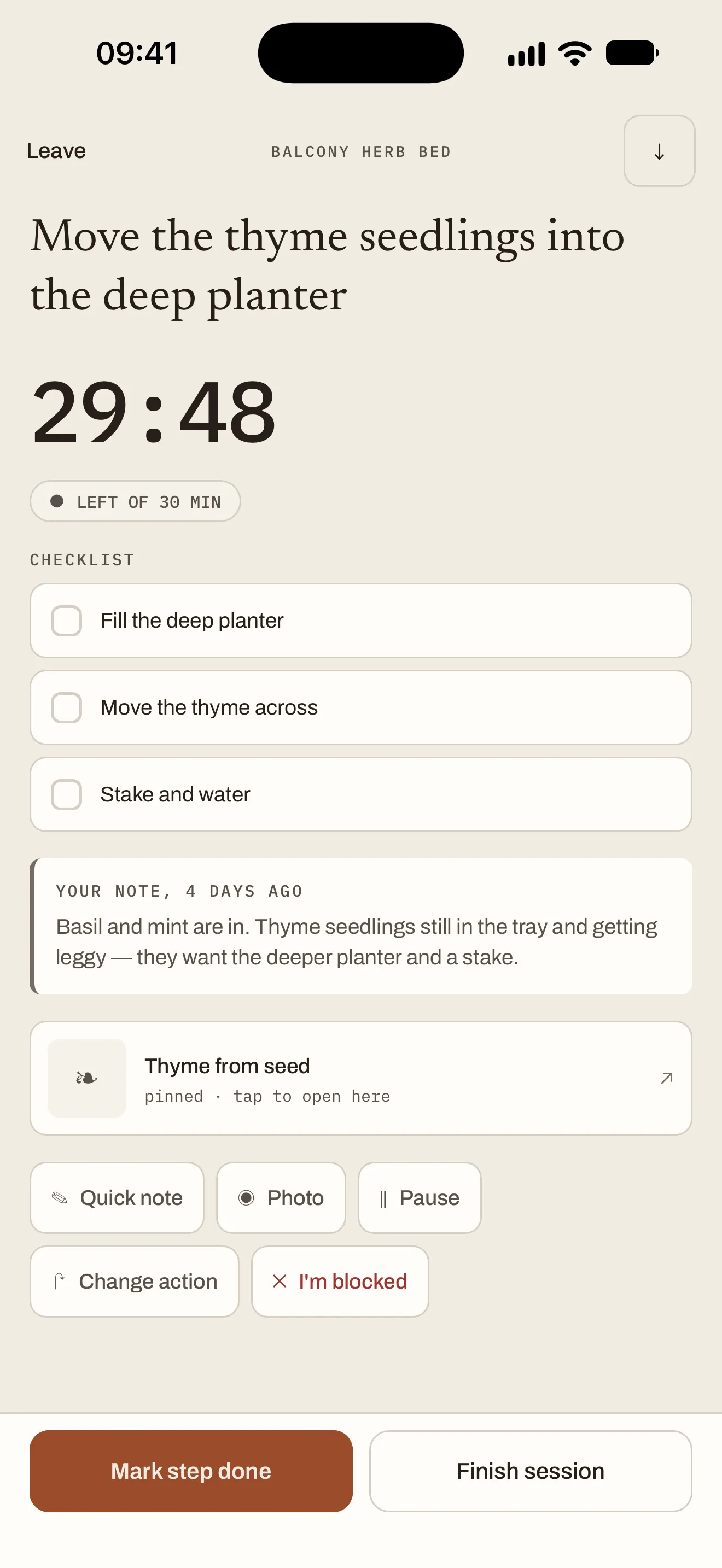
Start with what you’ll need, a pinned reference and the step’s checklist. The clock is there to help, and you can hide it. If you close the app halfway through, the session is waiting when you come back.

  • Quick notes and photos while you work
  • “I’m blocked” when you hit a missing part, tool or reply
  • The timer never decides whether the work happened
Before a Stillmaking session: the step, 30 minutes at low energy, what you’ll need, a pinned reference and a Start button
A Stillmaking session in progress: 29:48 left of 30 minutes, the checklist, your last note and tools for notes, photos and blockers

04

End with a note for next time.

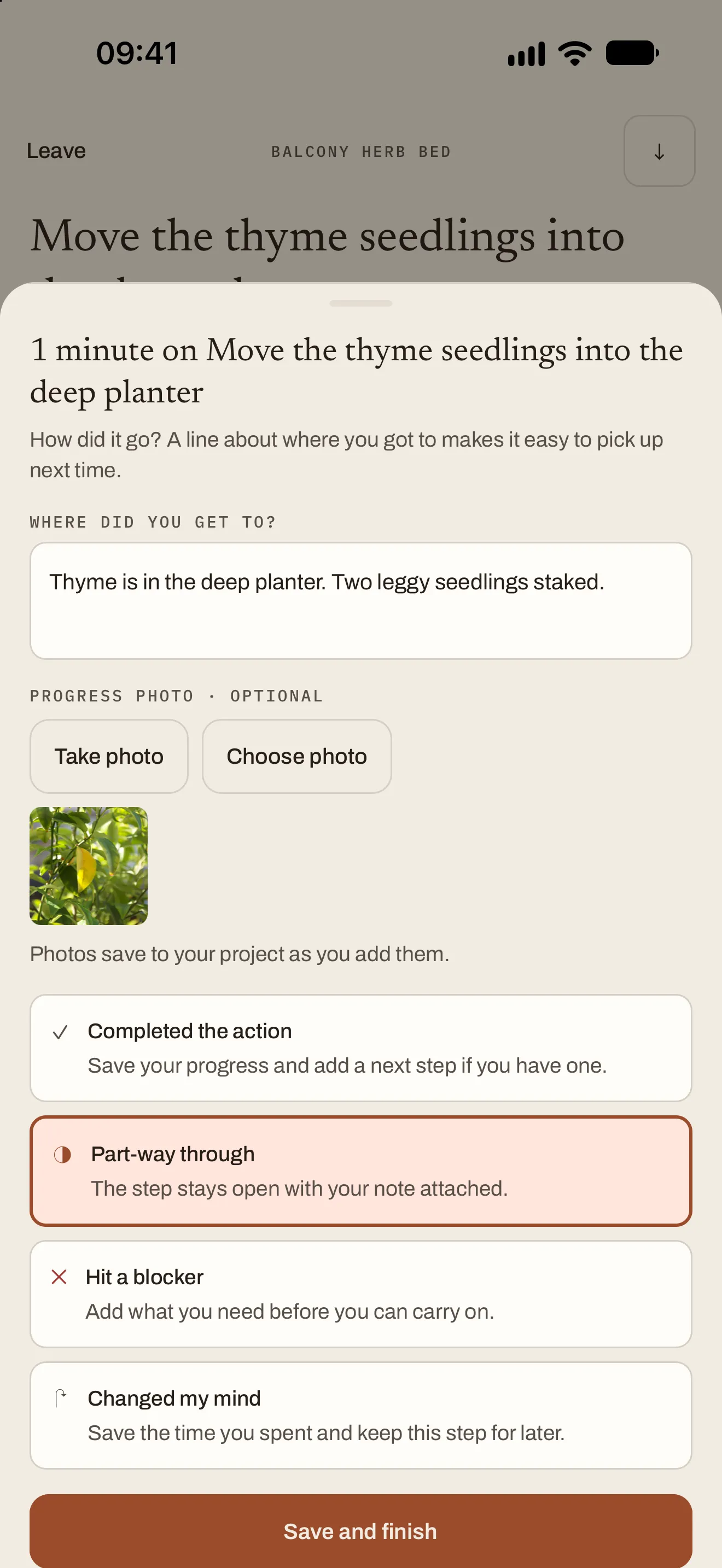
Where did you get to? Add a progress photo if it helps, say how it went, and leave yourself the next small step. That line is what greets you next time.

  • Completed, part-way, blocked or changed your mind
  • Photos from the camera or your library, copied into the app
  • Or stop without logging anything at all
Ending a Stillmaking session: “Where did you get to?” with a note, a progress photo and four ways it could have gone

Pausing is allowed

You paused here, not failed here.

Put a project down until a date, a season or whenever you’re ready. Mark what it’s waiting on when it’s blocked. When you come back, it’s exactly as you left it. Nothing expires, and there’s nothing to catch up on.

  • Idea
  • Ready
  • Active
  • Blocked
  • Paused
  • Finished
  • Set down

Setting a project down keeps its notes, photos and progress, and you can reopen it later.

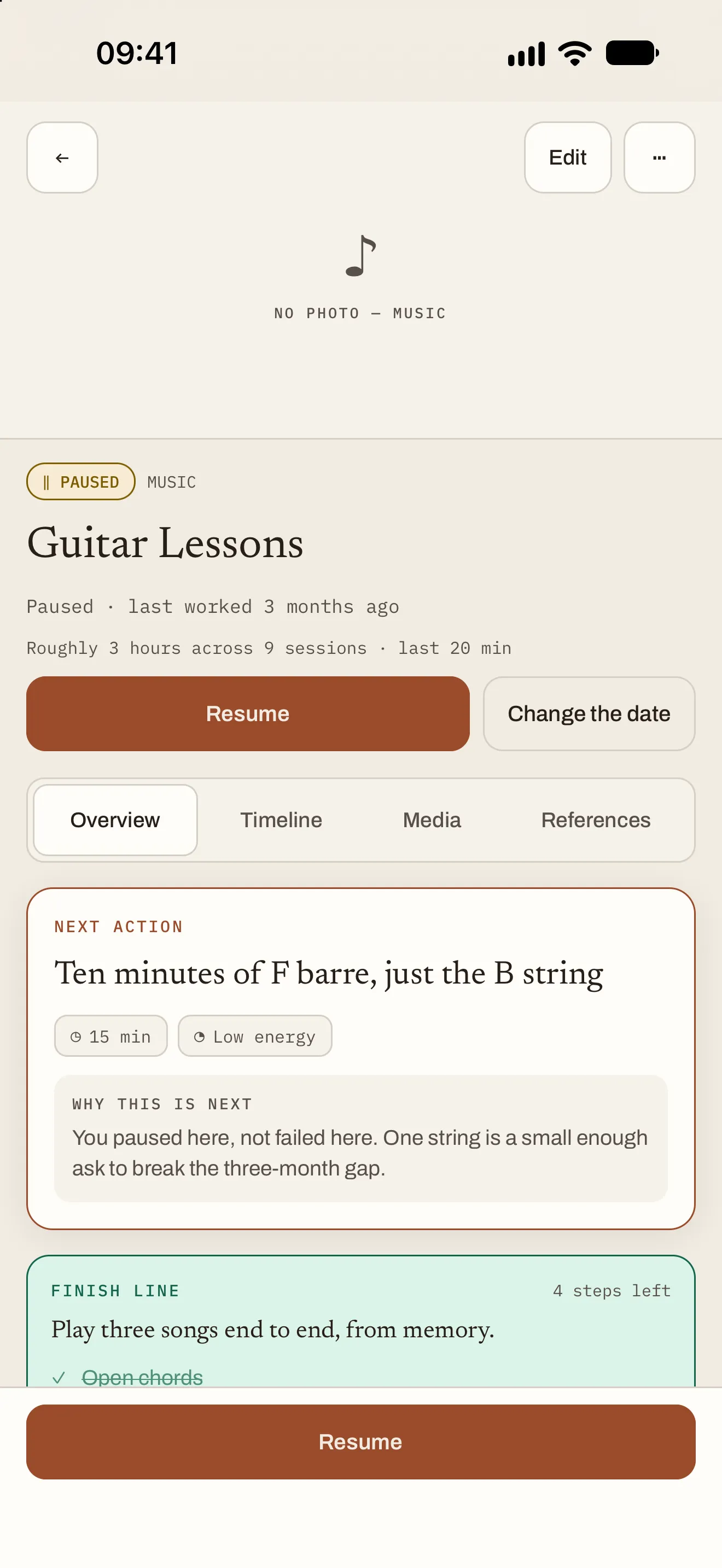
A paused Stillmaking project, Guitar Lessons, last worked 3 months ago. Next action: ten minutes of F barre, just the B string. Why: you paused here, not failed here.
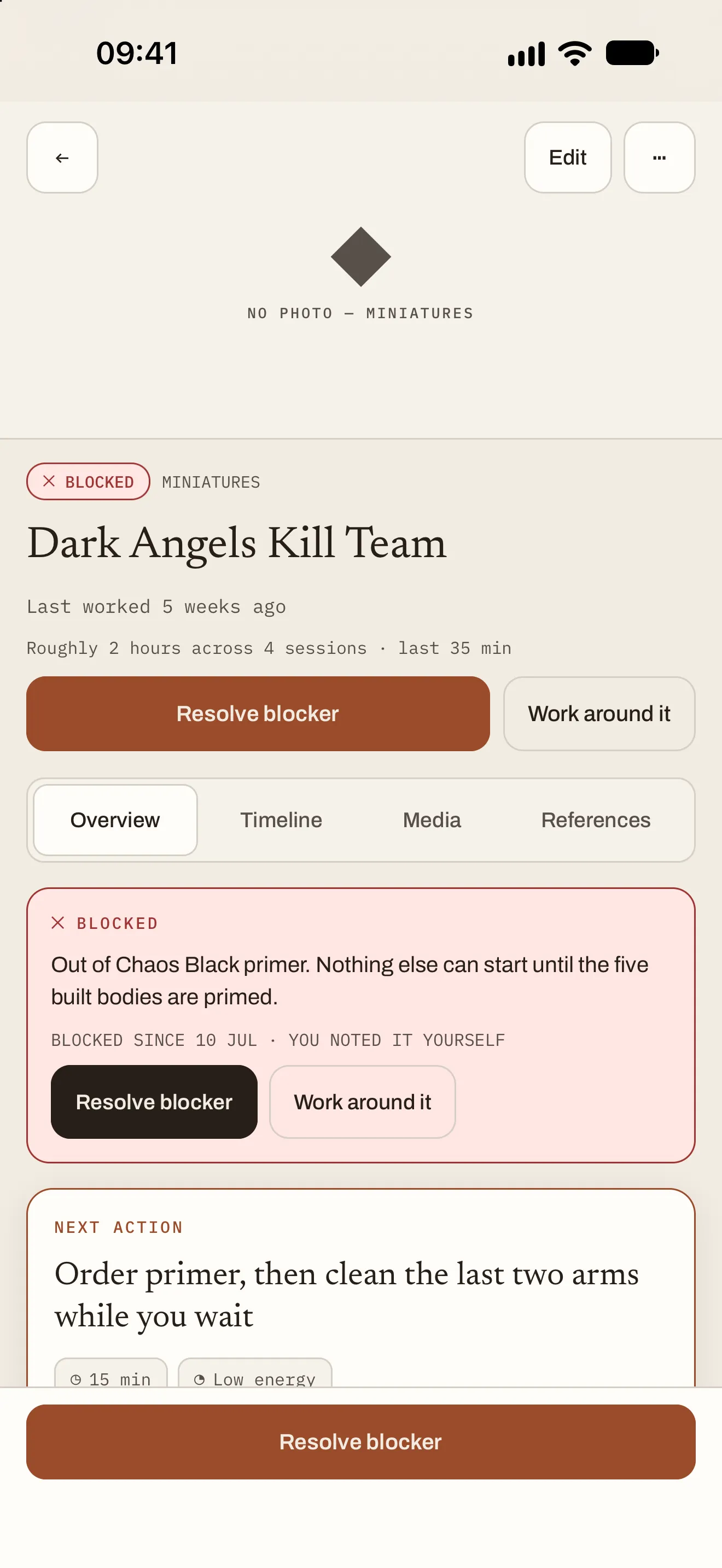
A blocked Stillmaking project, Dark Angels Kill Team: out of Chaos Black primer, with Resolve blocker and Work around it

Yours, on your iPhone

No account. No server. No catching up.

  • No account

    Open the app and add a project. A name is enough to start.

  • On this device

    Projects, notes, sessions and photos stay on your iPhone. There’s no server and no sync.

  • Your photos stay yours

    Never analysed, never uploaded, never used for training.

  • Backups you control

    Export everything as a ZIP with a readable summary and your full-size photos. Backing up is always free.

  • Reminders, only if you ask

    Off by default. Timer, blocker, paused-project and weekly reminders, scheduled on your device.

  • Readable your way

    Larger text, reduced motion, light and dark, and every status shown as a word as well as a colour.

Pricing

Free for 3 projects in progress. Unlock the shelf once.

Every feature is free. The lifetime unlock removes one limit: how many projects you can have on the go at once.

The free shelf

Free

  • 3 projects ready, active or blocked at a time
  • Unlimited ideas, paused, finished and set-down projects
  • Sessions, photos, suggestions, gallery, search and backups
  • Open, edit and export all your work, always

Pause a project to make room for free.

Lifetime unlock

Pay once

  • As many projects on the go as you like
  • One payment. No subscription or expiry.
  • Restore it with the same Apple Account
  • Deleting your data never removes the unlock

Price announced at launch.

Questions

Good to know.

More in Stillmaking support, or email senekudesign+support@gmail.com.

Is Stillmaking a subscription?

No. Stillmaking is free to download, and the lifetime unlock is one payment with no subscription or expiry.

What counts towards the free 3?

Projects that are ready, active or blocked. Ideas, paused, finished and set-down projects don’t count, so you can always pause one to make room. Everything else in the app is free.

Does it use AI?

No. Suggestions come from a fixed set of rules on your device, using the next steps, time and energy you’ve written down. The same answers give the same suggestion, and your text and photos are never sent anywhere.

Will my projects sync between devices?

No. Your projects stay on your iPhone. Export a backup to keep a copy or move to a new phone, then import it with a preview first. Your purchase restores separately through Apple.

What kind of projects is it for?

Anything you come back to over many sittings: miniatures and model kits, art, writing, music, coding, DIY and woodwork, sewing, electronics, gardens. It’s for personal projects rather than work or teams.

What do I need?

An iPhone. Requires iOS 16.4 or later.

Stillmaking is coming soon.

Leave your email and we’ll send one message when it’s ready to download.

Screens show the app’s own sample projects.